
You have installed the Pixel and see a green check in Pixel Helper, assuming that tracking works. Then, you notice that Ads Manager is reporting 12 purchases in a week where your store recorded 19. Now you are optimizing on numbers that do not match reality.
That gap is the real problem with TikTok tracking. Most guides stop at “paste the code,” which is the easy part. The hard part is event configuration, matching, deduplication, and the privacy rules that decide what you are allowed to send at all.
This guide covers the full setup, checked against TikTok’s current documentation:
- How to create a web data connection using the current Events Manager flow
- Which standard events exist right now, and which parameters to send with them
- When you need Events API alongside the Pixel, and how deduplication protects your numbers
- What TikTok prohibits you from sending, and where advertisers break that rule by accident
- A troubleshooting path organized by symptom instead of guesswork
Every threshold and event name below links to the TikTok help article it came from. Where TikTok’s documentation contradicts itself, and it does in one place, this guide says so instead of picking the convenient number.
Get Up to $6000 Free TikTok Ad Credit
Table of Contents
Key Takeaways
- TikTok Pixel is browser-side code that shares website events with TikTok based on the events you configure, and TikTok recommends setting up events that cover the full customer journey from product view to purchase.
- You do not strictly need the Pixel to run conversion campaigns. TikTok states that Pixel or Events API setup is a prerequisite for the Web Conversions objective, so either connection satisfies it.
- Reaching 50 conversions is what TikTok names as the most significant indicator of passing the learning phase. That is a campaign metric, not a Pixel requirement.
- TikTok lists Pixel and Events API together as its recommended setup, not as a sequence you graduate into at some spend level.
- If you send the same event through both connections, you must share a matching Event ID or TikTok will count that conversion twice.
- You are responsible for what you send. TikTok warns that URLs, UTM parameters, event names, product IDs, and custom audience names can all carry prohibited data.
How Do You Use TikTok Pixel?
Create a web data connection in TikTok Events Manager, install the Pixel base code on your site, configure standard events for the actions you care about, then verify with Pixel Helper, Test Events, and Diagnostics. Once events fire cleanly, use them to optimize campaigns, build website audiences, and seed lookalikes.
What TikTok Pixel Actually Does, and What It Does Not
TikTok Pixel is a piece of JavaScript you place on your website. According to TikTok’s About TikTok Pixel documentation, updated in June 2026, it shares website events with TikTok and can be used to measure site traffic, measure ad campaign performance, and optimize campaigns to find new customers.
Most guides blur five separate jobs into one word: tracking. Keeping them apart makes every later problem easier to diagnose.
| Function | The question it answers | What breaks it |
|---|---|---|
| Measurement | Did the visitor do the thing? | Missing code, wrong trigger, consent block |
| Matching | Can TikTok tie that action to a TikTok user? | Weak identifiers, no Advanced Matching |
| Attribution | Can that action be credited to an ad? | Lost click ID, cross-device journeys |
| Optimization | Can delivery use it as a signal? | Too little event volume |
| Audience building | Can it feed a retargeting list? | Small audiences, expired lookback windows |
A Pixel event can fire perfectly and still go unattributed. That is normal, not a bug. Knowing which of the five stages failed is the difference between a five-minute fix and a week of blaming your creative.
One correction worth making early. The Pixel does not train TikTok’s algorithm on its own. It transmits event signals, and TikTok’s delivery system uses those signals. That distinction matters the moment you start troubleshooting weak performance.
What You Need Before You Install Anything
Most duplicate event problems come from skipping this step. Run the list first.
- Platform. Shopify, WooCommerce, WordPress, Webflow, or custom code. This decides your install method.
- Existing connections. Check Events Manager for a pixel someone already created.
- Existing tags. Look inside Google Tag Manager before you add a TikTok tag there.
- Consent tool. If you serve visitors in the EU, the UK, or a US state with a privacy law, your consent banner needs to control when the Pixel fires.
- Pixel only, or Pixel plus Events API. Decide now. Deduplication needs planning, not retrofitting.
- A test environment. Fire a test purchase somewhere that will not pollute live reporting.
If you want a faster pass over these checks, our TikTok Pixel setup helper walks them in order.
How to Create Your Web Data Connection
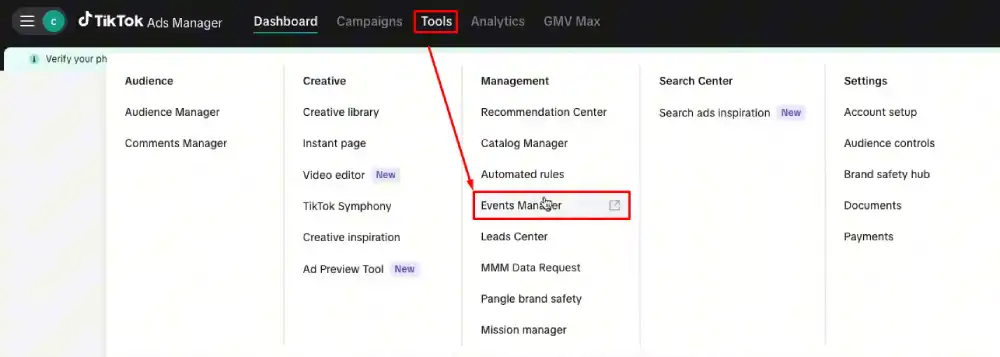
TikTok has renamed and moved parts of this flow, so older screenshots elsewhere no longer match. Per TikTok’s web data connection setup guide, the current path is:
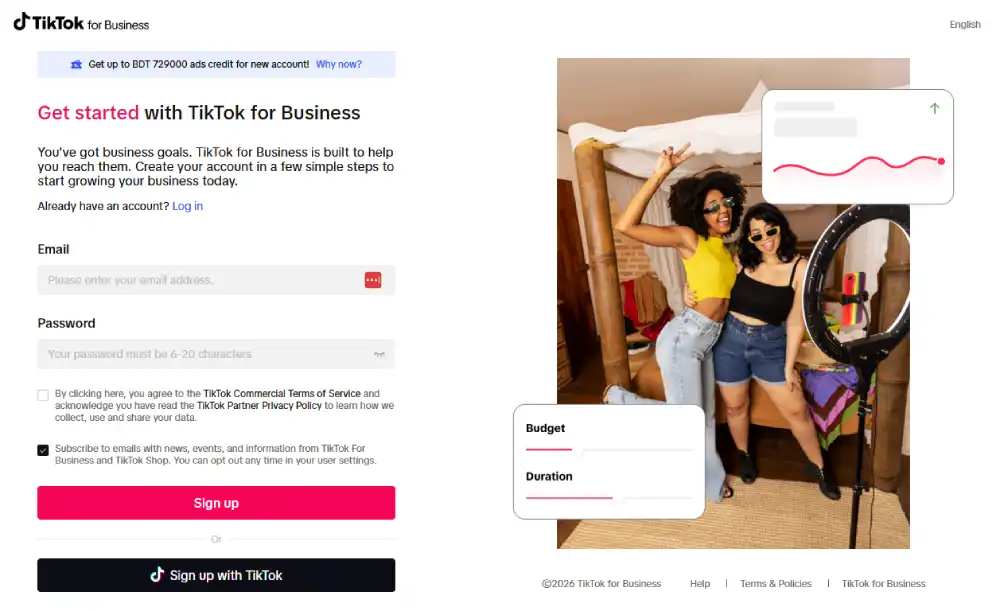
1. Log in to TikTok Ads Manager and go to Tools.
2. Click Events Manager.
3. Click Connect Data Source.
4. Select Web.
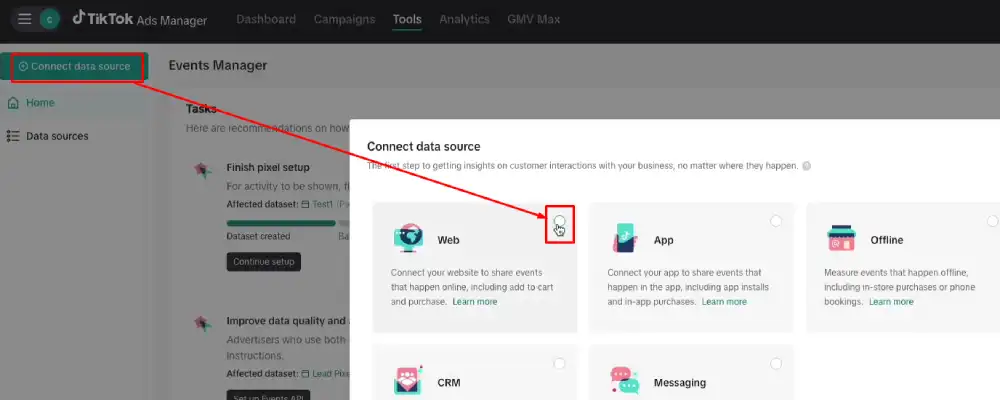
5. Input your URL.
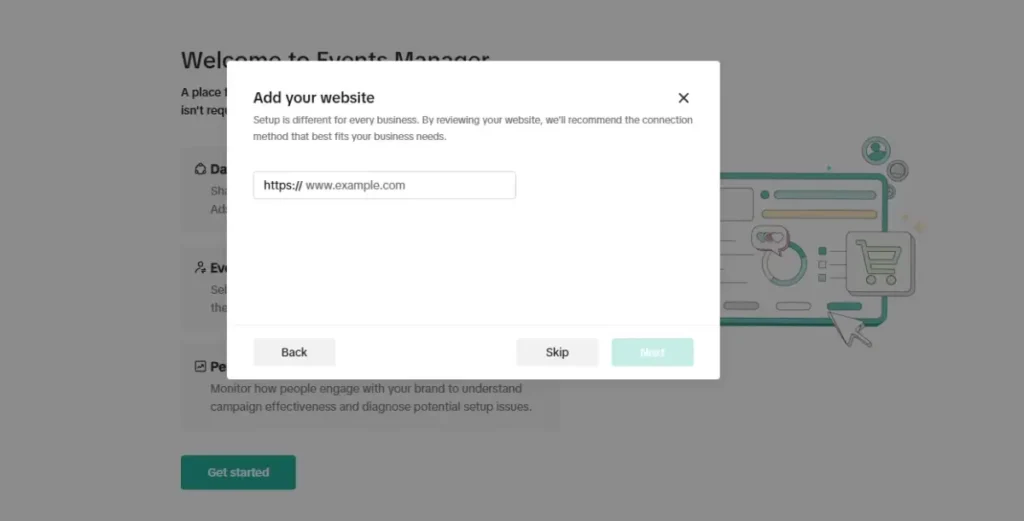
6. Select Partner Integration or Manual Setup as your connection method.
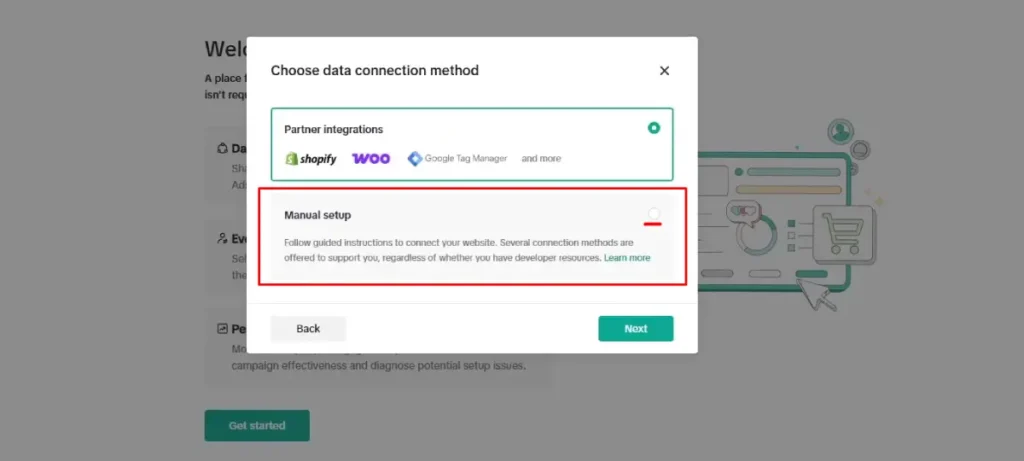
Two details from that same guide that people miss. Name your pixel so it matches your website or domain name, with a maximum of 128 characters including spaces. And if you choose Partner Setup, TikTok sends you to a page of supported partners, which includes Shopify and Google Tag Manager.
Use one primary browser-side pixel per website. Two browser implementations firing the same event is the most common cause of inflated conversion counts.
That said, having more than one data source is not automatically wrong. A store with a separate subdomain or a deliberate partner integration may have a good reason for it. What you must avoid is two implementations sending the same event with no deduplication, not the existence of a second asset.
How to Install TikTok Pixel on Your Website
There are four routes, not three. Partner integrations deserve their own line because they solve a problem the other methods do not.
Manual Installation
Copy the base code from Events Manager and paste it into the <head> section of the pages you want to measure. Most site builders and WordPress themes have a global header field for this.
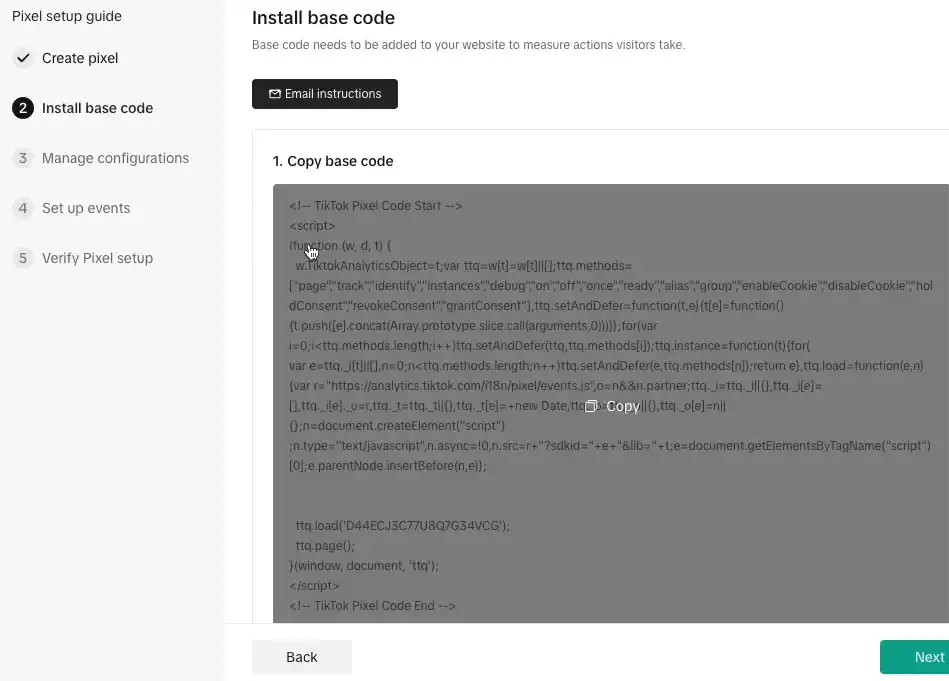
Install the Pixel on the pages where you need measurement. Not necessarily every page. TikTok’s guidance on potentially prohibited data sharing tells advertisers to review each place they installed pixel code, and says not to use the Pixel on web pages where personal health or financial information may be shared. A patient portal or a loan application page is exactly where “put it everywhere” advice gets you in trouble.
Two edge cases the base install does not handle by itself:
- Single page applications. React, Vue, and similar frameworks change the URL without a full page load, so page view events need to fire on route changes.
- Content Security Policy. If your site runs a strict CSP, you need to allow TikTok’s script and endpoints or the Pixel fails silently.
Shopify Integration
Install the official TikTok app from the Shopify App Store, connect your Ads Manager account, then pick a data sharing level. That last choice changes what you send and what you must disclose, so it deserves more than one line.
TikTok’s Shopify data sharing documentation defines the three levels:
| Level | What TikTok says it uses | Trade-off |
|---|---|---|
| Standard | TikTok Pixel only. Browser-based ad blockers can prevent it from collecting data | Simplest, least complete |
| Enhanced | TikTok Pixel, Events API, and Advanced Matching | Better coverage, more customer data shared |
| Maximum | Pixel, Events API, Advanced Matching, Shopify APIs, and In-App Shopify Checkout, which is in beta | Most complete, widest data sharing |
Maximum gives the strongest signal. It is not automatically the right choice. In the same document, TikTok tells merchants to make sure customers understand how their information is collected and to ensure their privacy policy reflects their use of customer data. Pick the level you can actually disclose and defend.
You may see this event called Complete Payment in older guides, partner platforms, or your own historical setup. That is not a current alternative name. TikTok renamed CompletePayment to Purchase for web, offline, and CRM channels. Existing CompletePayment events keep working and auto-convert in reporting, but any new setup should use Purchase. Our guide to running TikTok ads for a Shopify store covers the campaign side once the connection is live.Tag
Google Tag Manager
GTM suits sites that already manage several tags centrally. Create a Custom HTML tag, paste the base code, set the trigger to All Pages, then use Preview mode before you publish.
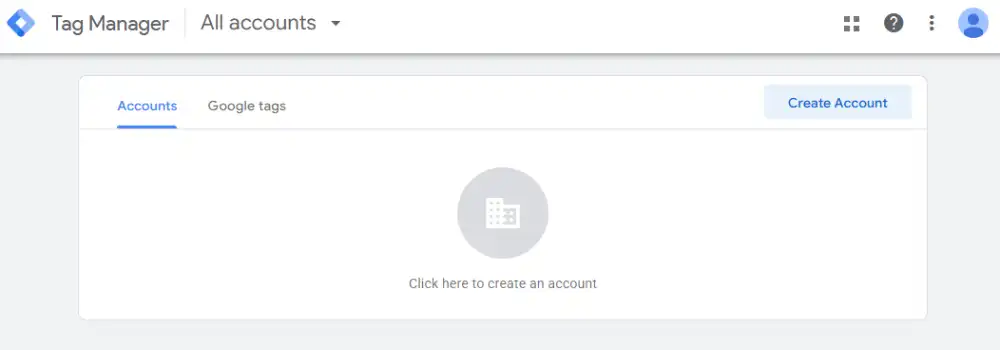
GTM is an option, not a best practice. If TikTok is your only tracking tag, manual installation is simpler and has fewer failure points. Choose based on how many tags you manage, not on which method sounds more advanced.
Partner Integrations
This route gets skipped in most guides, and it changes the cost of server-side tracking completely. TikTok’s own comparison in its data connection setup methods documentation, updated July 2026, puts a direct Events API build at one to four weeks. A commerce or data partner implementation can take less than an hour.
So “Events API requires a developer” is only true for direct builds. On a supported commerce platform you may be an hour away from server-side events with no engineering ticket at all.
Which TikTok Pixel Events Should You Track?
The base code collects some information on its own, including timestamps, IP address, and user agent, but it does not define your business’s conversion actions. The Pixel shares that information based on the events you have set up, so configuring optimization-relevant events is where meaningful measurement actually begins.
Here are the events most advertisers use, taken from TikTok’s Standard Events and Parameters documentation, updated April 2026.
| Event | Event code | What it measures | Objective |
|---|---|---|---|
| View Content | ViewContent | A visitor views a specific page | Sales, Lead |
| Add to Cart | AddToCart | A visitor adds an item to the cart | Sales |
| Initiate Checkout | InitiateCheckout | A visitor proceeds to checkout | Sales |
| Add Payment Info | AddPaymentInfo | A visitor adds payment info at checkout | Sales |
| Purchase | Purchase | A visitor makes a purchase | Sales |
| Submit Form | SubmitForm | A visitor submits a form | Lead |
| Complete Registration | CompleteRegistration | A visitor signs up or registers an account | Lead |
| Start Trial | StartTrial | A customer begins a free trial | Lead |
| Search | Search | A visitor searches | Sales, Lead |
TikTok’s full list is longer. It also includes Add to Wishlist, Subscribe, Contact, Schedule, Download, Find Location, Submit Application, Application Approval, and Customize Product. Check the current list before you build anything unusual.
Two names worth flagging if you inherited an older setup. TikTok’s update to standard events renamed CompletePayment to Purchase and soft-deprecated PlaceAnOrder and ClickButton, recommending Purchase, Lead, or ViewContent instead for new setups.
Legacy events keep running and TikTok supports them until 2027, but historical data does not transfer if you switch names, so decide once rather than renaming repeatedly. That same announcement also said SubmitForm would become Lead, though TikTok’s current Standard Events reference still lists Submit Form with no separate Lead event, so treat that particular rename as unsettled and check the live event list in your own Events Manager before you build a new lead-gen setup around either name.
Send Parameters, Not Just Event Names
A Purchase event with no value attached still counts as a conversion, and TikTok can still optimize toward it and build audiences from it. What you lose is the revenue figure itself.
TikTok’s recommended parameters for Add to Cart, Purchase, and View Content are content_type, quantity, description, content_ids, currency, and value. Search takes search_string. Start Trial takes content_ids, currency, and value.
Pass value and currency on every commerce event. Without them, TikTok has no transmitted revenue figure to use for value-based optimization or accurate ROAS reporting inside Ads Manager, even though the conversion itself is still counted.
Custom Events Are Not the Same as Automatic Signals
Older guides list scroll depth and button clicks as custom events. That is wrong, and it matters if you go looking for them in the wrong place.
TikTok collects some of that on its own. Its expanded data sharing documentation covers button click text and elements, general clicks on button-like elements, scroll activity including depth, direction, duration, and speed, and media element visibility. You can toggle expanded data sharing off in your Events Manager settings.
Custom events are different. They are events you define yourself, for funnel steps that no standard event covers.
One limit matters here. TikTok’s documentation on data connections for website optimization states that custom events are available for reporting and audience creation but are not currently supported for optimization. If you want to optimize a campaign toward an event, it has to be a standard event.
Which Event Should You Optimize Toward?
Optimize toward the event that reflects your business goal and has enough volume to be learnable. If Purchase volume is too thin, testing a higher-volume event such as Add to Cart is a reasonable strategy while you build data.
Be clear that this is a practitioner strategy, not a TikTok rule. TikTok does not require you to collect a set number of Add to Cart events before you may optimize for Purchase. The relevant published number belongs to campaign delivery, not to the Pixel itself.
TikTok’s Learning Phase states that achieving 25 conversions is the most significant indicator of a given ad group passing the learning phase. It is a signal, not a hard gate, and it has nothing to do with how long your Pixel has existed or how much history it has collected. Getting there faster is a budget, offer, and creative problem as much as a tracking one.
Advanced Matching and Cookies: The 2026 Accuracy Layer
This section is missing from most Pixel guides, and it does more for match rates than any other single setting.
TikTok’s Advanced Matching for Web documentation explains that Advanced Matching links customer information such as email and phone number with actions people take on your website, across Pixel, Events API, or partner platforms. It comes in two forms.
Automatic Advanced Matching identifies form fields on pages where the Pixel is installed and hashes what visitors enter there. Manual Advanced Matching gives you explicit control over which fields you pass.
TikTok recommends using both together, with one important exception. For regulated or sensitive industries such as financial services or healthcare, TikTok suggests using Manual Advanced Matching instead of automatic, so you control exactly what leaves your site.
Availability of these controls can vary by implementation method, so check the settings a given partner integration actually exposes before assuming both options are on the table.
Skip the “hash everything with SHA-256 yourself” advice you see elsewhere. For Automatic Advanced Matching, TikTok hashes qualifying information in the browser using SHA-256 before it reaches TikTok servers.
What you control is format. Email should be lowercase and trimmed of whitespace. Phone numbers should use E164 format. Bad formatting is one of the most common Pixel Helper errors.
Cookies are the other half of matching. The Pixel documentation states that first-party cookies are optional, third-party cookies are on by default, and performance improves when first- and third-party cookies are paired with Advanced Matching.
TikTok’s cookie documentation breaks the specifics down by cookie:
| Cookie | Domain | Type |
|---|---|---|
_ttp | Your website domain | First-party |
_ttp | .tiktok.com | Third-party |
ttcsid | Your website domain | First-party |
ttclid | Your website domain | First-party |
_pangle | analytics.pangle-ads.com | Third-party |
Every cookie in that table expires 13 months from being set or last used.
Check your first-party cookie setting. TikTok’s Diagnostics flags this directly and offers an action button to enable it when it is off.
TikTok Pixel vs Events API: Do You Need Both?
The Pixel fires from the visitor’s browser. According to TikTok’s Events API documentation, the Events API is a server-to-server connection that shares actions across web, app, and offline channels, with control over what data you share.
| Factor | TikTok Pixel | Events API |
|---|---|---|
| Where it runs | Visitor’s browser | Your server |
| Setup time | Manual: a few minutes | Direct: 1 to 4 weeks. Partner: often under an hour |
| Ad blockers | Can be blocked | Not directly dependent on browser ad blockers, though other data-loss causes still apply |
| Data control | Fixed by what fires in the browser | Granular control over what you share |
| Typical fit | Simple browser-side implementation | Recovering missed conversions, sharing data across web, app, and offline channels |
Note what that same Events API page says: Pixel or Events API setup is a prerequisite for the Web Conversions objective. So the common claim that you cannot run conversion campaigns without the Pixel is too absolute. You need a web data connection. The Pixel is one way to have one.
TikTok’s recommendation is also not “Pixel first, Events API later.” It lists Pixel and Events API together as recommended, because the two are designed to be compatible and using both creates a more reliable connection for measurement, delivery, and audience creation.
There is no spend threshold that unlocks Events API. If you are on a supported platform, adding it is a short job. If you need a direct build, weigh that against how much your budget decisions depend on accurate conversion counts. Our deeper walkthrough of how the TikTok Events API works covers implementation.
Deduplication: The Rule That Protects Your Numbers
Send the same event through both connections without deduplication and you will count conversions twice.
TikTok’s event deduplication documentation sets out the mechanics:
- Share Event ID as a parameter through both Pixel and Events API. TikTok keeps the first event it receives.
- Deduplication is not required if you send different events through each connection with no overlap. Sending Add to Cart through the Pixel and Purchase through Events API is fine.
- For overlap between Pixel and Events API, TikTok merges or deduplicates events with identical event and
event_idparameters arriving after 5 minutes and within a 48-hour window from the first event.
Note what this means for troubleshooting. A missing event_id does not stop an event from recording. It stops duplicates from being merged. Those are different failures with different fixes.
What You Must Not Send to TikTok
This section belongs in every Pixel guide and appears in almost none of them.
TikTok tells advertisers to review their Pixel or Events API integration to confirm they are not sharing prohibited data from anywhere on their site. That review covers URLs from pages where the Pixel is installed, UTM parameters, and the names you chose for custom audiences and custom events.
Its guidance also names forms, event names, product names, product IDs, custom properties, and content names as places prohibited data hides, and recommends working with your legal team on the review.
Practical rules that follow:
- Do not put personal information in event names or custom audience names.
- Audit your UTM parameters. A UTM string can carry information from previously viewed pages. If you build links by hand, our guide to UTM tracking for TikTok ads shows a naming convention that keeps this clean.
- Keep the Pixel off pages that handle health or financial information.
- Never pass government ID numbers or financial account numbers in any parameter.
On consent, TikTok is direct. Its cookie configuration guidance states that advertisers are required to provide notices and obtain consent as applicable laws require, and to keep their website and privacy practices compliant.
Where you lack developer resources, TikTok suggests using a third-party consent management platform. A tool like Clym can help implement the banner and regional consent logic, but you are still responsible for configuring it correctly and for meeting whatever laws apply to your visitors. No CMP makes a Pixel compliant on its own.
One claim you will see repeated elsewhere and should ignore: that TikTok stores no raw personal data. That is a statement about TikTok’s internal processing, and no marketing guide is in a position to make it. Read the TikTok Business Products (Data) Terms if you need certainty on that point.
How to Verify Your TikTok Pixel Is Working
TikTok lists three verification methods, and you want all three because each catches a different class of problem.
Pixel Helper confirms the code is present and shows which events fire. TikTok’s Pixel Helper documentation lists the errors it surfaces, including first-party cookies not found, empty or invalid event names, invalid email format, and phone numbers that do not match E164 format.
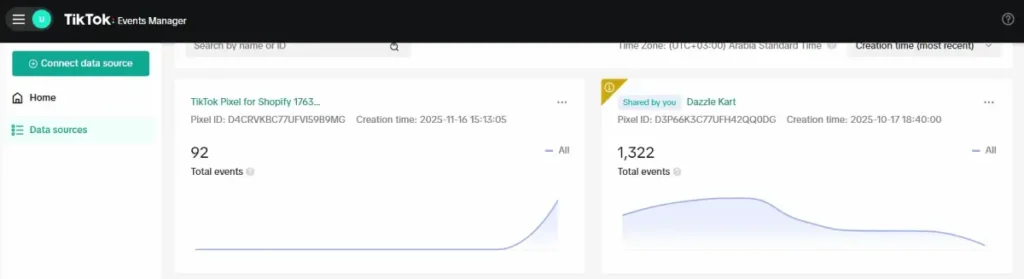
A green check means detected. It does not mean correct. It cannot tell you whether the value is right, whether the event fires on the correct trigger, or whether deduplication works.
Test Events confirms individual events fire with the right parameters in real time. Run a real journey: product page, add to cart, checkout, purchase.
Diagnostics catches the slow problems. TikTok’s Web Diagnostics documentation explains that the tab identifies issues such as missing parameter data or content ID, and that each card shows the issue, its severity, the affected dataset, and impacted ads, with an action item to resolve it.
Troubleshooting: Find the Symptom First
“My Pixel isn’t working” covers five unrelated failures. Match the symptom to the check.
No pixel detected on the page. Confirm the code sits in the <head>. Check that your GTM container is published and the trigger is live. Check whether your consent banner is blocking the script. Check your CSP.
Pixel detected, but one event never fires. The base code is fine and the event configuration is not. Check the trigger conditions and your Event Builder setup. On a single page application, check whether route changes fire the event at all.
The same event fires twice from one action. Look for a second browser-side implementation first, usually a manual pixel left in the theme alongside a partner app or a GTM tag. If you run Pixel and Events API together, check whether both send that event with a matching event_id.
Events fire but nothing is attributed to your ads. This is a matching and attribution problem, not an install problem. Check Advanced Matching, first-party cookies, whether ttclid survives your checkout redirects, and your attribution window.
Low match rates. Add Advanced Matching and fix parameter formatting. Lowercase emails, E164 phone numbers.
Events look fine but delivery is poor. Stop looking at the Pixel. Check event volume against the 50 conversion learning benchmark, then look at your optimization event, budget, audience, and creative.
How to Use Pixel Data to Improve Your Campaigns
Build Website Audiences
In Ads Manager, go to Audiences, create a Custom Audience, and select Website Traffic. Build segments from the events you configured: product page viewers, cart abandoners, past purchasers.
Watch the targeting threshold here, since it is separate from the lookalike threshold below. TikTok’s Website Traffic audience guide states that you need a minimum audience size of 1,000 to target Custom Audiences in an ad group. If a segment sits below that, widen the lookback window or combine event types rather than launching a campaign that cannot deliver.
TikTok’s Website Traffic overview adds that you can hold up to 400 custom audiences in an account at one time, built from both attributed and non-attributed events.
Create Lookalike Audiences
Here TikTok’s documentation contradicts itself, and you deserve the real picture rather than a confident wrong number.
- The Lookalike Audience FAQ, updated February 2025, says your source audience needs at least 100 users after mapping with users on TikTok Ads Manager.
- The About lookalike audiences page, updated June 2025, says the minimum source audience size for lookalike creation is 1,000.
Creation and targeting are separate requirements, which is part of why these numbers get confused. For a conservative build, plan around 1,000 as your source size, since that also clears the separate 1,000-user minimum you need to target the audience in an ad group once it exists. But verify the current creation minimum inside your own Ads Manager account, since TikTok’s documentation is inconsistent on that specific number. The lookalike page sets out the three size options: Narrow finds users with the highest similarity to your source but produces a smaller audience, Broad increases reach with moderate similarity, and Balanced sits between them.
Narrow is not automatically better. It trades reach for similarity, which can starve a campaign of volume. Test the size setting the way you test creative, and check your seed size with our lookalike audience builder before you commit budget.
Run Retargeting Campaigns
Warm audiences already know your product, so your creative can answer objections instead of introducing the brand. Retargeting can produce stronger conversion efficiency because the audience has already shown intent, but it can also carry higher CPMs and higher frequency, because the pool is small. Both outcomes are normal. Judge it on cost per conversion, not on CPM alone.
Lookback windows are a test variable, not a setting with one correct answer. Match them to your sales cycle: shorter for impulse products, longer for considered purchases. For the campaign structure that goes with these audiences, see our guide to setting up retargeting campaigns on TikTok, or the breakdown of custom audiences versus lookalike audiences if you are deciding where to spend first.
If you are still planning your first campaign budget, TikTok and its partners periodically run ad credit promotions. Eligibility, amounts, and regions change often, so read the current terms before you build a plan around one. You can check what is live on the TikTok ad credit offer page.
Frequently Asked Questions
How do I find my TikTok Pixel ID?
Log in to TikTok Ads Manager, go to Tools, then Events Manager. Click your pixel in the datasets list and the ID appears next to the pixel name. You can also find it inside the base code, where it appears as the pixel code value. Keep it handy, since partner integrations and Events API setups both ask for it.
Is TikTok Pixel free to use?
Yes. Creating and installing a TikTok Pixel costs nothing, and you do not need an active ad budget to generate one. You need a TikTok Ads Manager account, which is also free to open. The Pixel itself has no fee. Depending on how you implement it, you may still spend time or money on developer work, a Google Tag Manager setup, or a consent management platform, on top of whatever ad spend you run against the campaigns using the data it collects.
Can I run conversion campaigns without a Pixel?
You need a web data connection, but not specifically the Pixel. TikTok states that Pixel or Events API setup is a prerequisite for the Web Conversions objective, so either one satisfies the requirement. The Pixel is often the simpler starting point, since a manual install can take only a few minutes, but a direct Events API build or a partner integration satisfies the same requirement on its own.
How far back can website audiences look?
TikTok offers several lookback windows inside the audience builder rather than publishing one fixed maximum in its Website Traffic help article, which says only that various lookback windows are provided. Choose based on your sales cycle and check the current options in Ads Manager. A very long window dilutes a warm audience with people who no longer remember you.
Does installing the Pixel early shorten the learning phase?
Installing early lets you collect event history and populate audiences before your first campaign runs, which is worth doing. It does not guarantee a shorter learning phase. TikTok ties passing the learning phase to reaching 50 conversions, which depends on your budget, offer, and delivery, not on how long your Pixel has existed.
What is the difference between the Pixel and Pixel Helper?
The Pixel is the tracking code on your website. Pixel Helper is a free Chrome extension that inspects any page and reports which pixels and events it detects, along with specific errors. One collects data, the other checks that your collection is set up correctly. Pixel Helper cannot validate whether your business logic or conversion values are right.
Getting This Right Once
If you do one thing after reading this, verify what you already have. Open Pixel Helper on your own checkout, then open the Diagnostics tab. Common tracking problems include duplicate implementations, missing value or currency parameters on commerce events, and a first-party cookie setting nobody switched on.
Fix what Diagnostics surfaces first, since a broken browser implementation will pass its own errors into Events API once you connect the two. From there, add Events API where you can. TikTok recommends the pairing, and on a supported commerce platform it can take less than an hour, not the multi-week direct build some guides imply.
Then leave it alone long enough to gather real data. A clean setup you review monthly beats a clever one you rebuild every two weeks.