
You have 400 products in your store and no time to build a separate ad for each one. Every week you pick a handful of bestsellers to promote, while the rest of your catalog sits untouched. Shoppers who browsed a product but did not buy never see it again.
That is the exact problem TikTok Catalog Ads solve. Instead of building ads one product at a time, you connect your full product feed to TikTok and let the platform generate personalized ads automatically.
Two shoppers can see two completely different products from the same campaign, based on what each one actually wants.
In this guide, you will learn:
- What Catalog Ads and Dynamic Product Ads (DPA) actually do
- How Catalog Ads differ from TikTok Shop ads
- What you need in place before you start
- The exact steps to build your catalog and launch a Smart+ Catalog Ads campaign
- Common setup mistakes that stall approval or hurt performance
Once your feed and pixel are connected correctly, most of the ongoing work disappears. TikTok’s system takes over the product selection and creative matching for you.
Get Up to $6000 Free TikTok Ad Credit
Table of Contents
Key Takeaways
- Catalog Ads automatically match products to individual shoppers using behavior data, so no two people need to see the same ad.
- You need at least 4 in-stock, approved products in your catalog before TikTok will let you launch a Smart+ Catalog Ads campaign, according to TikTok’s official setup guide.
- A single catalog can hold up to 20 million products, based on the TikTok Ads Manager catalog documentation.
- Your product feed needs 9 required fields and can include up to 27 optional fields for richer, more personalized ads.
- Catalog Ads run through your website, while TikTok Shop ads sell inside the app itself. They are not the same tool.
How Do You Set Up TikTok Catalog Ads?
Create a catalog in TikTok Ads Manager, upload your product feed in a supported format, connect your TikTok Pixel or Events API for tracking, then launch a Sales campaign using Smart+ Catalog Ads. TikTok automatically generates and personalizes ads from your catalog once it is approved and active.
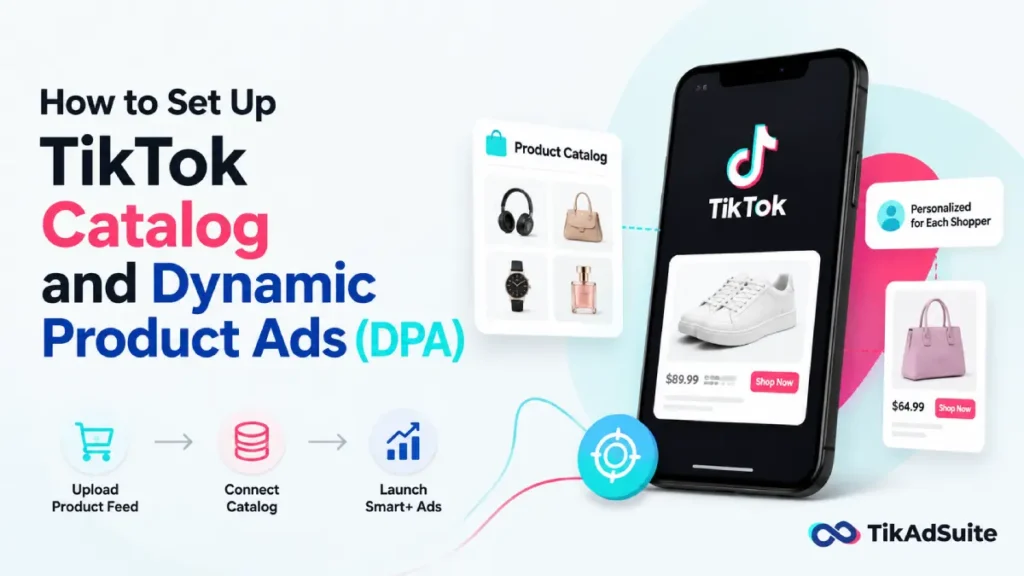
What Are TikTok Catalog Ads and Dynamic Product Ads?
Catalog Ads pull product images, prices, and descriptions straight from your catalog to build ads automatically. TikTok’s machine learning decides which product each viewer sees, based on what they searched for, watched, or clicked before.
This is the same core idea behind Dynamic Product Ads (DPA) on other platforms like Meta. You upload a feed once, and the system keeps generating fresh, personalized ad combinations without you touching individual creatives.
You can browse examples of this format in TikTok’s Video Shopping Ads library to see how the personalization plays out in practice.
Catalog Ads vs. TikTok Shop Ads: What Is the Difference?
Catalog Ads and TikTok Shop Ads both use product data, but they send shoppers to different places. Catalog Ads drive traffic to your own website, where the sale happens on your domain. You don’t need to set up a TikTok Shop when you choose a Catalog as your product source.
TikTok Shop ads, on the other hand, keep the entire purchase inside the TikTok app. If you are still deciding which path fits your business, this breakdown of TikTok Shop vs TikTok Ads walks through the tradeoffs in more detail.
What You Need Before You Start
Before you open TikTok Ads Manager, get these three pieces in place. Skipping any one of them will slow down your setup or get your campaign rejected.
- An active TikTok Ads Manager account with billing set up
- A product feed file or live feed URL from your store platform
- A TikTok Pixel or Events API connection already firing on your site
If you have not connected tracking yet, this guide on how to use TikTok Pixel walks through the install process first. Catalog Ads depend on that data to know which shoppers already viewed which products.
Step 1: Build Your Product Catalog
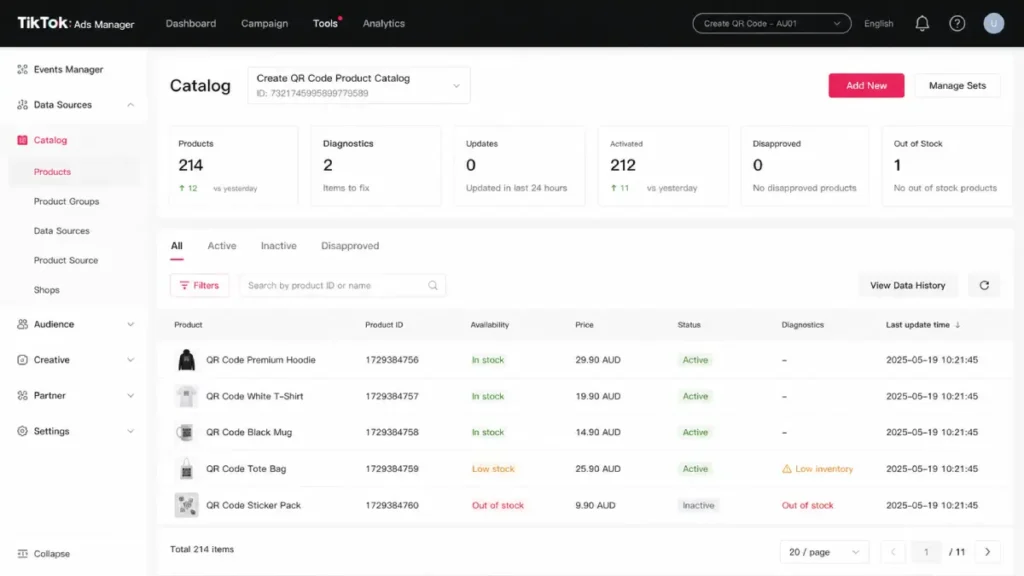
Log into TikTok Ads Manager and open the Assets menu, then select Catalog and click Create. You will name your catalog, choose a default currency that matches your product prices, and pick the location you plan to target.
There are 9 required and 27 optional product parameters to add a product to your catalog. The required fields cover the basics: product ID, name, description, availability, price, link, image link, brand, and condition.
Optional fields let you add extra detail like size, color, and material, which helps TikTok match products more precisely.
Step 2: Format Your Product Feed Correctly
TikTok needs your feed in a specific file format to read it correctly. The supported file formats are CSV, XML (RSS), XML (Atom), ZIP, and GZ, with GZ files compressed using the tar command not supported.
Your feed file also has size limits you should plan around. The file size must be less than 50GB, and the number of products must be less than 20 million. (Source) Most small and mid-sized stores will never come close to either limit, but it matters if you run a large multi-brand catalog.
Step 3: Connect Your Feed to TikTok
You have three ways to get products into your catalog, and the right one depends on how often your inventory changes. Manually adding products works fine for a small, stable catalog you rarely update.
For most stores, a scheduled data feed is the better option. A Data Feed Schedule automatically adds products from an online file according to a schedule, using your feed name, URL, and login details if the file is password-protected.
You can also connect through a store platform partner directly, since TikTok integrates with catalog partners including Shopify, BigCommerce, WooCommerce, and PrestaShop. If your store runs on Shopify, the TikTok Shopify app handles this sync for you automatically.
Step 4: Create Product Sets
Product sets let you group products by shared traits, like category, price range, or bestseller status. This matters because you rarely want to promote your entire catalog in one campaign.
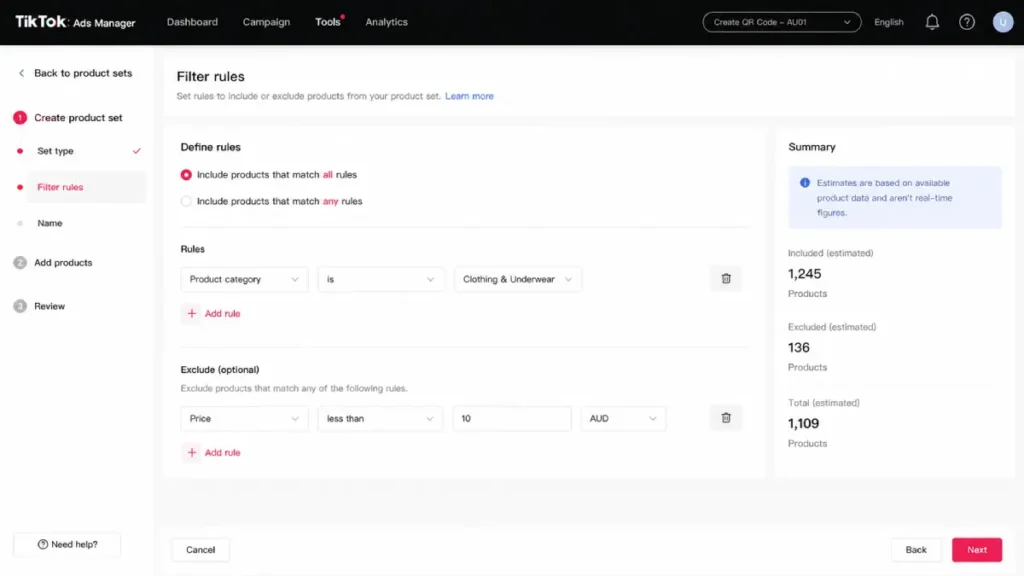
You can build a set using filters, which apply rules automatically as your inventory changes, or by manually selecting individual products.
Filters are the better choice for large catalogs, since new products that match your rules get added without extra work on your end.
Step 5: Launch a Smart+ Catalog Ads Campaign
With your catalog and product sets ready, it is time to build the campaign itself. Click Campaign, then Create, select Sales as your objective, choose Website, and pick Smart+ campaign as your campaign type.
Inside your ad group settings, turn on Use Catalog and select the catalog you just built. You will then choose how products get featured in your ads.
You can feature all products, a specific product set, or up to 20 individually chosen products. Most stores get the strongest results from a product set, since it stays current without manual updates.
Step 6: Add Creative and Enable Tracking
Smart+ Catalog Ads can pull creative straight from your catalog images and videos, but adding your own footage improves results. TikTok recommends adding at least 6 videos to get the most from your campaign.
Before you publish, confirm your tracking is connected under the campaign’s Tracking section. This is where your pixel or Events API data feeds back into TikTok, which is what allows the system to retarget shoppers who viewed specific products.
If retargeting is new to you, this guide on set up retargeting campaigns on TikTok covers the setup logic in more depth.
How Does TikTok Personalize Catalog Ads for Each Viewer?
TikTok’s system reads two signals at once: your product feed data and each viewer’s behavior on and off the app. It cross-references what someone searched, watched, or clicked with the products in your active sets.
From there, it builds a personalized ad in real time for that specific viewer. Two people scrolling the same feed at the same moment can see completely different products from your store, pulled from the same underlying campaign.
How Does This Connect to Product GMV Max?
If you also sell through TikTok Shop, your catalog data feeds into more than standard Catalog Ads. TikTok now channels product feed information into Smart+ Catalog Ads, Video Shopping Ads, Catalog Listing Ads, and TikTok Shop campaigns alike.
For sellers running both channels together, TikTok gmv max builds on this same catalog foundation to automate bidding across your full product lineup.
Common Catalog Ads Mistakes to Avoid
A few setup mistakes show up again and again, and most of them are easy to fix once you know where to look.
- Uploading a feed with missing required fields, which causes products to get rejected silently
- Launching with fewer than 4 approved products, which blocks Smart+ Catalog Ads entirely
- Forgetting to connect pixel or Events API tracking before launch, which cripples retargeting
- Letting inventory or price data go stale, so ads show out-of-stock items or wrong prices
- Promoting the entire catalog instead of a focused product set, which dilutes performance data
FAQ
Do I need a TikTok Shop to run Catalog Ads?
No. You don’t need to set up a TikTok Shop when you choose a Catalog as your product source. Catalog Ads send traffic to your own website instead of an in-app storefront, so the two features work independently of each other.
How many products do I need to launch a campaign?
You need at least 4 products that are in stock, approved, and activated in your catalog before TikTok allows a Smart+ Catalog Ads launch. Fewer than that, and the campaign type will not become available in Ads Manager.
Can I reuse my Google Shopping feed for TikTok?
Often yes, with some adjustments. TikTok can import catalogs from Google Merchant Center, though you should double check image ratios and required fields before importing to avoid rejected products.
How often should I update my product feed?
Update as often as your inventory or pricing changes, ideally daily for active stores. A stale feed risks showing sold-out products or outdated prices, which wastes ad spend and frustrates shoppers.
What is the difference between Catalog Ads and Dynamic Video Generator?
Catalog Ads are the campaign format itself, while the Dynamic Video Generator is a creative tool. It generates custom videos for all products in your catalog, which you can then feed directly into your Catalog Ads.
Wrapping Up
Start with your feed. If your product data is clean, complete, and updated on a schedule, everything downstream, from product sets to Smart+ targeting, works the way it is supposed to. Most Catalog Ads problems trace back to a feed issue, not a targeting issue.
Once your first campaign is live, resist the urge to promote your whole catalog at once. A focused product set backed by solid tracking will teach TikTok’s system faster and get you cleaner data to work from.
If you are still weighing whether to run ads through TikTok Ads Manager or through TikTok Shop, this guide covers both paths honestly, so you can pick the one that fits how your store actually sells.