
Symphony Creative Studio can turn a product photo, a short prompt or an ad you already run into a new TikTok video. The hard part is finding the steps. TikTok explains each tool on its own help page, so the path from login to a live ad is spread across a dozen articles.
This guide skips the TikTok Symphony suite overview and puts the steps in the order you actually use them. It covers which tool to pick, how each one works, how to get the finished file into Ads Manager, and the limits that can stop a first project halfway.
Every step and limit below was checked against TikTok’s own help pages on November 24, 2026. TikTok moves buttons around from time to time, so if a label looks different in your account, look for the closest match.
Quick Answer
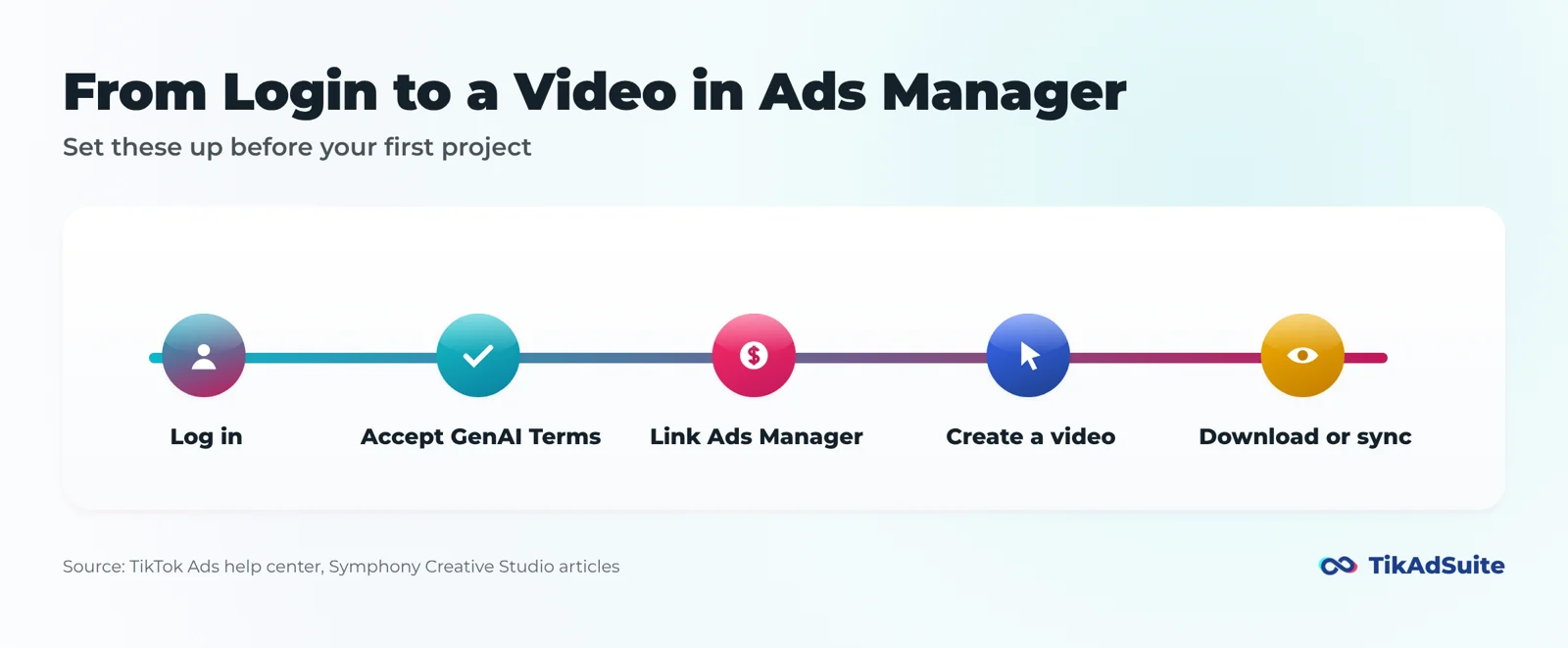
Symphony Creative Studio is TikTok’s free AI workspace for making TikTok-style videos and images for ads or organic posts, as TikTok’s About Symphony Creative Studio page describes it. You log in with a TikTok for Business account, pick a tool from the left panel, create or upload a video, edit it, then download it or sync it straight to TikTok Ads Manager.
It also helps to know the limits up front. According to TikTok’s help pages, which list them on separate articles, Dreamina Seedance 2.0 won’t take references with real faces, Product avatar doesn’t support accessories like shoes or sunglasses, and translate and dub is off for users in Texas and Illinois.
The studio costs nothing to open, but AI video generation and Symphony Agent run on weekly credits. TikTok’s Symphony credits page says each second of generated video uses one credit, while image generation, avatar videos, translate and dub, and editing use none. The exact cost can change with the model you pick.
Key Takeaways
- Symphony Creative Studio is free to use with a TikTok for Business login, and TikTok’s Agent steps say to work on desktop web.
- Link your TikTok Ads Manager account first. TikTok’s credits page says the link sets your credit plan right away, and the Agent page ties Symphony Agent access to that account’s ad spend.
- Video generation has three modes, Text to video, Image to video and Reference to video, and each second it makes costs one credit, according to TikTok’s credits page, though the cost can vary by model.
- Avatar videos, translate and dub, image generation and the video editor use no credits, so they are the cheapest place to start.
- Every exported video gets an AI-generated label, and TikTok still reviews it before it can run.
Which Tool Fits Your Ad
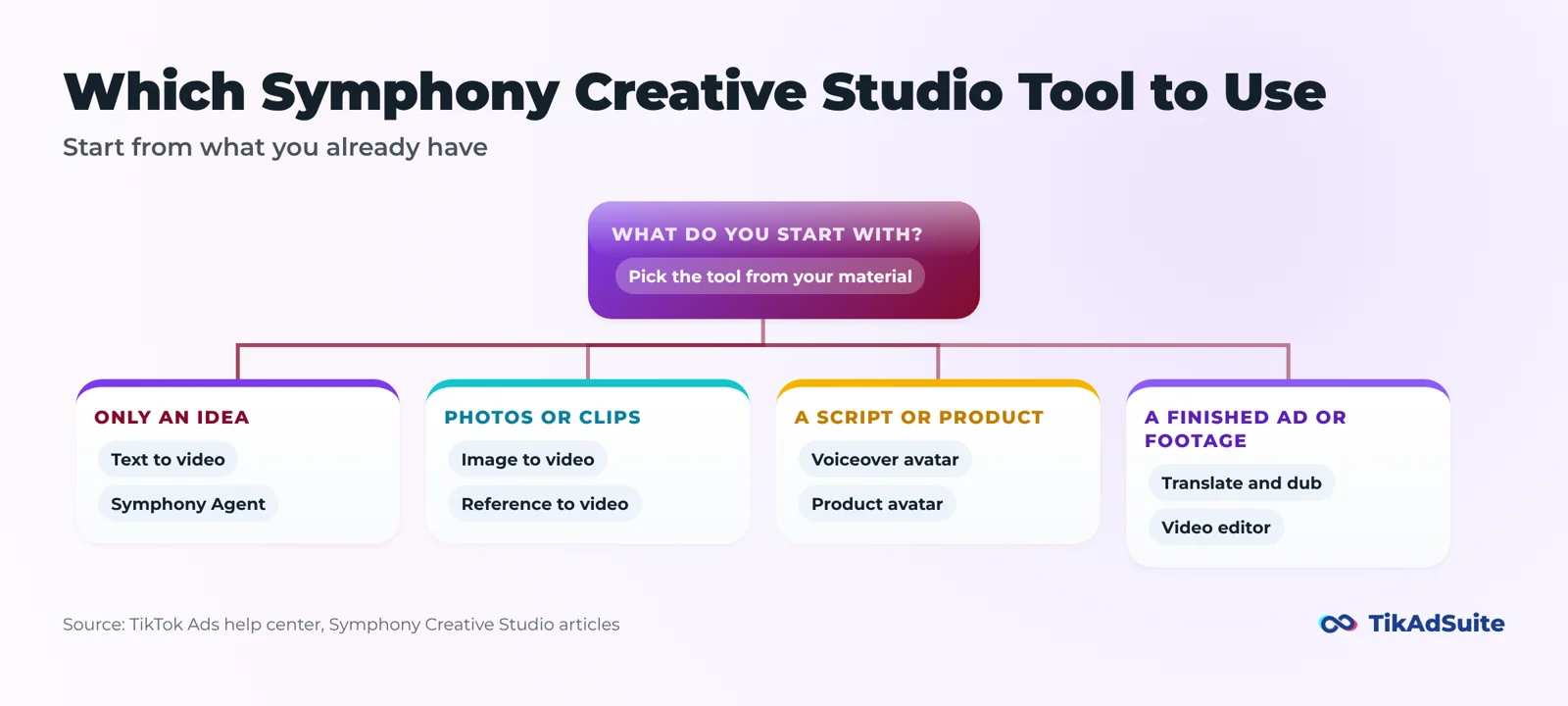
The right tool depends on what you already have. Start from the material in your folder and work back to the feature. Whichever tool you pick, the basics of good TikTok ad creative still apply.
| What you start with | Tool to use | Uses credits? | Watch out for |
|---|---|---|---|
| Only an idea or a product description | Text to video, or Symphony Agent if your account has it | Yes | One scene per prompt works best |
| One good product photo | Image to video | Yes | Seedance 2.0 blocks real faces in references |
| Several photos or video clips | Reference to video | Yes | The 50-reference limit needs Seedance 2.5, which is still rolling out |
| A script and no one to film | Voiceover avatar | No | Pick an avatar that fits your buyer and market |
| A product that needs a person holding it | Product avatar | No | Shoes, hats, sunglasses and bracelets are not supported |
| An ad that worked in one language | Translate and dub | No | Not available in Texas and Illinois |
| Raw footage that needs captions or music | Video editor | No | AI label is added on export |
The 50-reference limit in that table comes with Seedance 2.5, which TikTok’s Seedance 2.5 announcement says is rolling out to select paid advertisers in select markets first.
Before You Start
You need three things in place before the tools work the way TikTok describes them.
- A TikTok for Business account. Creative Studio uses that login. TikTok’s Symphony Agent page says to log in through desktop web, so plan to work on a computer.
- The Creative GenAI Terms. On your first visit you have to accept them, per TikTok’s video generation guide.
- A linked TikTok Ads Manager account. According to TikTok’s credits page, linking an Ads Manager account sets your credit plan right away, while a plan earned through ad spend starts the next Monday at 12 AM UTC. No account yet? You can open a TikTok Ads Manager account before you start. If you link several ad accounts, the one with the highest spend decides your plan.
How to Generate a Video From Text, an Image or References
Video generation turns a prompt, a photo or a set of references into a short clip. TikTok’s video generation guide lists three modes and the same basic path for each.
- Hover over the left panel and click Create.
- Pick Text to video, Image to video or Reference to video from the dropdown, then add your inputs.
- Choose an AI model from the dropdown.
- Choose the video length where the mode offers it.
- Click the up arrow to start. The same guide says generation usually takes a few minutes, depending on mode and settings.
- Open the Library from the left panel to preview what you made.
What each mode needs:
- Text to video: a description of the scene you want. You can also upload a reference image or a video under 10 seconds to pull a prompt from it, but its visuals won’t appear in the final video.
- Image to video: an image from your computer or asset library, plus a prompt that describes the movement you want added.
- Reference to video: several images or videos as references, plus a text prompt as extra direction.
Choosing a Model
The models in that dropdown come from ByteDance’s Dreamina Seedance family. TikTok’s Seedance help page says which variants you see depends on your subscription tier. The default model supports Agent, Reference to Video, Image to Video, Text to Video and Avatar, while the faster variants support only Agent and Reference to Video. The same page says credit cost per generation varies by model tier, so check the dropdown before you generate.
Check the model before you upload a person. According to TikTok’s video generation guide, Seedance 2.0 won’t use images or videos with real faces as references in its initial rollout, so you need a different model for that.
Longer clips are arriving in stages. According to TikTok’s Seedance 2.5 announcement, the new model raises the video limit from 15 to 30 seconds and the reference limit from 9 to 50 files. Because it is still rolling out, your account may not have it yet.
Prompts That Work
TikTok’s video generation guide gives a short set of prompt rules. In plain terms:
- Keep it simple and describe what should be on screen.
- Write one scene per prompt. Make separate clips and join them in the editor.
- Don’t write the prompt as a chat message or a system instruction.
- Don’t name celebrities or ask for split-screen or picture-in-picture shots.
- If a result looks off, run the same prompt again before you rewrite it.
Here are three prompts we wrote to follow those rules. They are examples, not tested results:
- A hand places a white ceramic mug on a wooden desk next to a laptop, morning light.
- A woman opens a small cardboard box and lifts out a pair of wireless earbuds.
- A person scrolls a fitness app on a phone while sitting on a gym bench.
How to Make an Ad With Symphony Agent
Symphony Agent is a chat-based tool inside Creative Studio that takes you from a brief to a finished video ad. According to TikTok’s Agent page, it can make a 15-second video in about 5 minutes and up to 3 versions at a time for A/B tests.
Not every account sees it. If Agent is missing from your left panel, check which Ads Manager account is linked, since TikTok’s Agent page ties access to that account’s ad spend.
In Manual Mode, the steps on TikTok’s Agent page are:
- Hover over the left panel and click Agent.
- Choose where to start: a top ad trend, a TikTok template, or your own reference image or video.
- Describe your goal in plain language. Include your selling points, target audience, brand tone and any rules, such as no humans or no medical claims.
- Review the product brief, insight report, storyboard and video the agent produces.
- Edit any stage with a prompt or the side panel, then regenerate.
- Export the video or sync it to TikTok Ads Manager.
TikTok also says the agent doesn’t copy existing ads. It studies the hooks, story patterns and calls to action in top ads and makes new content inspired by them. You can study the same top ads yourself in the TikTok Creative Center before you write a brief.
Auto Mode for Several Versions at Once
Auto Mode skips the review steps and goes straight from your prompt to finished videos. TikTok’s Auto Mode guide puts it at roughly 5 to 10 minutes from prompt to video, against 15 minutes or more in Manual Mode.
- Before you start a new chat, switch the mode toggle from Manual to Auto.
- Set your video preferences: music, voiceover, language and number of videos.
- Enter your prompt, or pick a trend, template or reference video.
- Send it, then review the results. You can regenerate from the same storyboard, ask for new angles or type changes like a new hook.
You can’t switch modes during an active chat. To change modes, start a new one.
Plan your credits before a batch. At the one-credit-per-second rate on TikTok’s credits page, three 15-second versions would use 45 credits by our math. The model tier can change that, and Symphony shows the exact cost before each generation.
Fixing One Scene With AI Edit
AI Edit fixes one scene of an Agent video without remaking the whole thing. TikTok’s AI Edit guide describes this path:
- Click Fix visual issues next to a generated video.
- Wait while the video splits into scenes, then pick the one to fix.
- Choose a ready-made fix, such as fixing the product or human distortions, or type your own. For product fixes you can upload up to 3 real product photos.
- Wait about 3 to 4 minutes, then compare the new scene with the old one side by side.
- Click the version you want to keep, then click Save to render the video.
How to Create an Avatar Video
Avatar videos put a presenter in your ad without a shoot, and they use no credits, which makes them a cheap way to test AI avatars in TikTok ads. TikTok’s avatar video guide describes two modules.
Voiceover avatar reads your script on screen:
- Hover over the left panel and click Voiceover avatar.
- Pick a real-human or AI-generated avatar. Filters cover appearance, industry, gender, background and region.
- Type your script or upload an audio file. No script yet? Draft one with an ad script generator first.
- Click Generate, or choose Advanced edit to open the full editor.
Product avatar shows a person holding or modeling your product:
- Click Product avatar and upload a product image or an app screen, or pick one from your library.
- Select an avatar and generate.
- Hover over a result and click Animate to use it as the first frame of a video.
- Add a voiceover and captions if you want them, then generate.
The same guide says clothing accessories such as shoes, hats, sunglasses and bracelets are not supported, so plan those products for Image to video instead.
How to Translate and Dub a Video
Translate and dub swaps a video’s voiceover into another language. You can clone the original voice or pick a stock one. TikTok’s translate and dub guide gives these steps:
- Hover over the Tools icon in the left panel.
- Upload a video or add one from your library.
- Under Translate to, pick a language. Click +Add language for more.
- Under Voice, choose Clone or a stock voice.
- Turn on Replace existing subtitles if the original has burned-in subtitles.
- Turn on Lip-sync if someone speaks on camera. It renders when you export.
- Click Generate, review both scripts, then export.
Lip-sync has limits. The guide says it does not work with more than one speaker, a covered mouth, poor lighting or background noise.
You can only make small script fixes, like typos. TikTok doesn’t allow edits that change the message, tone or the speaker’s views. TikTok also says the feature is unavailable to users in Texas and Illinois because of local restrictions.
How to Generate Product Images
Image generation makes still visuals from a prompt and your own photos, and it uses no credits. TikTok’s image generation guide lists the steps:
- Select Image in the prompt box on the Home page or the Create page.
- Upload up to 4 reference images.
- Write a prompt or pick a template, then click the up arrow.
You can download the results, sync them to Ads Manager, or use them as references for video generation. That last option is handy when you need a clean product shot before you animate it.
How to Polish Any Video in the Editor
The video editor adds TikTok-style finishing touches to any clip, whether you made it in Symphony or filmed it yourself. Select Video editor, then add a clip from your uploads, your generations or the stock library.
TikTok’s video editor guide lists these tabs:
- Assets: swap in uploads, generations or stock clips.
- Audio: trending or recommended music, sound effects, or Pick music for me.
- Voiceover: text to speech or your own recording, translation, captions and lip sync.
- Captions: edit, add or remove them.
- Avatars: replace the avatar in the video.
- Text, Effects and Stickers: styled text and add-ons for parts of the video.
A timeline at the bottom lets you move and time each element. When it looks right, click Export.
How to Export and Send a Video to Ads Manager
Every tool ends the same way: you download the file or sync it to TikTok Ads Manager. In the Library, TikTok’s video generation guide says you can:
- Click Download to save one video to your computer.
- Click Sync to Ads Manager to send it straight to your ad account.
- Click Select multiple, tick several clips, then Export to download or sync them in one batch.
- Click Save project to come back and edit later.
When you sync, pick the right account. According to TikTok’s video editor guide, you choose the Ads Manager account linked to your profile or search for an account ID. Agencies with several clients should double-check this step.
Every export gets two things whether you want them or not. TikTok adds an AI-generated label, and the video still goes through moderation and policy review in TikTok or Ads Manager before it can be published.
Once the video is in your account, you build the campaign and the ad as usual, following the normal Ads Manager campaign setup.
Get Up to $6000 Free TikTok Ad Credit
Mistakes and Limits to Know
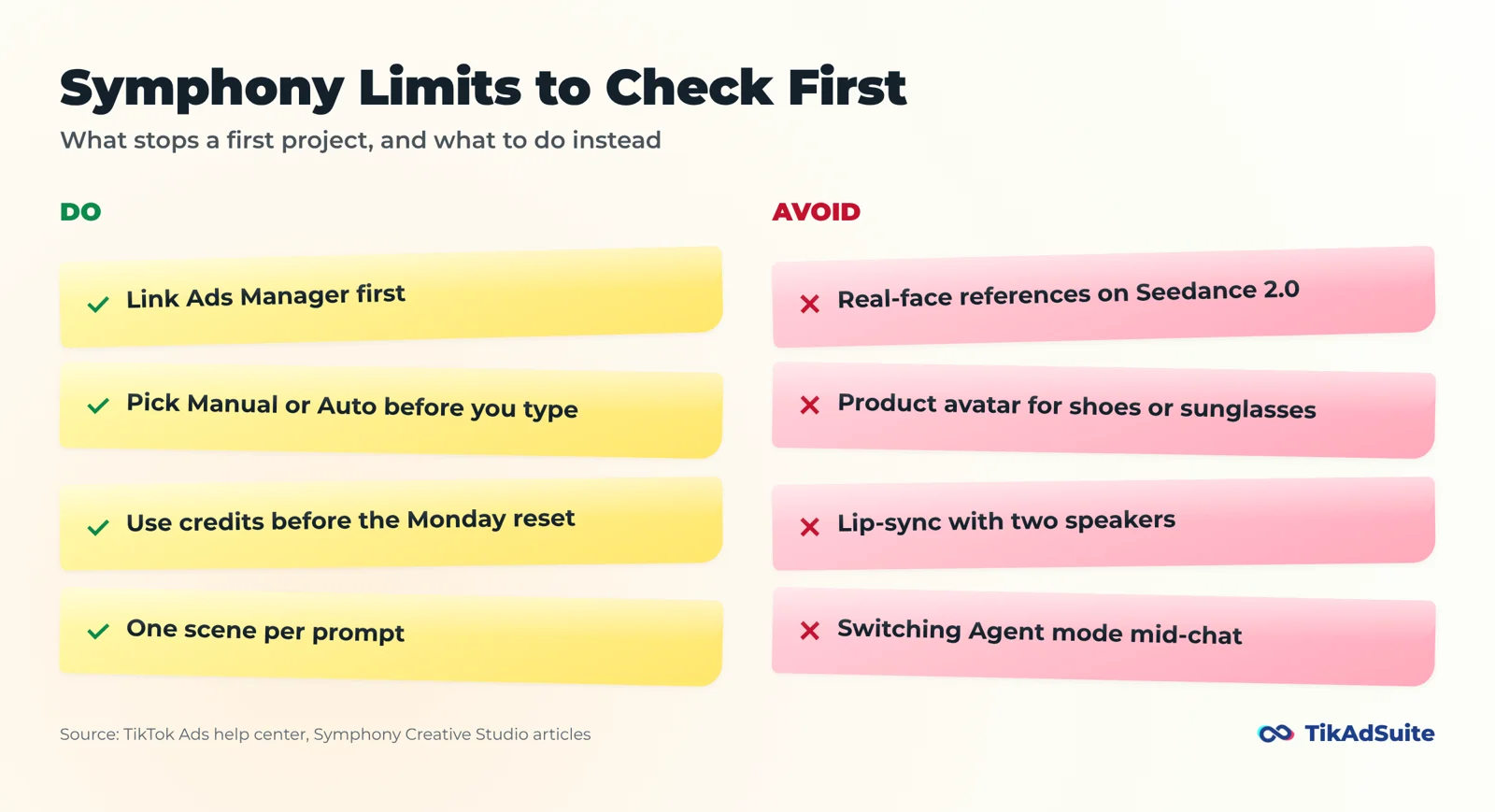
Most first-project problems come from a limit that sits on a different help page. These are the ones to check before you start:
- Uploading a person as a reference on Seedance 2.0. It blocks real faces. Switch models or use a product-only shot.
- Using Product avatar for accessories. Shoes, hats, sunglasses and bracelets are not supported. Use Image to video or the editor instead.
- Dubbing a video with two speakers. Lip-sync won’t work. Pick a single-speaker clip or turn lip-sync off.
- Planning a dubbed campaign from Texas or Illinois. The feature is not available there.
- Starting an Agent chat in the wrong mode. You can’t switch mid-chat, so set Manual or Auto before you type.
- Saving credits for later. According to TikTok’s credits page, unused credits expire when the balance refreshes on Monday at 12:00 AM UTC.
- Packing several scenes into one prompt. Generate one scene at a time and join them in the editor.
Frequently Asked Questions
Is Symphony Creative Studio free?
Yes. TikTok calls Creative Studio a free creation tool. AI video generation and Symphony Agent draw on a weekly credit allowance at one credit per second of video, with the cost varying by model tier, while image generation, avatar videos, translate and dub, and editing use no credits at all.
Why can’t I see Symphony Agent in my account?
Access to Symphony Agent is based on the ad spend of the TikTok Ads Manager account linked to Creative Studio, and TikTok’s credits page says it is available to select customers. Check that the right ad account is linked. If you link several, the one with the highest spend sets your plan.
Can I use Creative Studio on my phone?
Plan to use a computer. TikTok’s Agent and Auto Mode steps tell you to log in on desktop web, and none of the Creative Studio help pages checked for this guide describe a mobile app. You can still download finished videos and post them from any device.
Who owns the videos I make in Creative Studio?
TikTok says outputs from its GenAI tools belong to you unless stated otherwise, and that your inputs and outputs are not used to train other AI models at this time. Read TikTok’s GenAI terms before you reuse a video elsewhere, and expect the AI-generated label on every export.
What happens when my Symphony credits run out?
According to TikTok’s credits page, you can’t use the credit-based tools until your balance refreshes every Monday at 12:00 AM UTC, and unused credits don’t roll over. Avatars, dubbing, images and editing still work. If a generation fails because of a system error, TikTok returns the credits automatically.
Wrapping Up
Start small. Take one product, make one Voiceover avatar video and one Image to video clip, and sync both to Ads Manager so you know the full path works for your account.
After that, add credit-based tools where they earn their place. Use Agent or Reference to video when you need several versions to test, and translate and dub when an ad has already proven itself in one market. If Symphony can’t make what you need, other AI ad creation tools can fill the gap.